How-to Guides
This section contains step-by-step instructions for common tasks when using Prisma Access Browser (PAB).
File Transfer
One of the most common tasks you'll need to perform is transferring files to and from remote servers through PAB. The process varies depending on the type of remote connection you're using.
Windows Remote Connections
You can transfer files using the built-in file transfer capabilities.
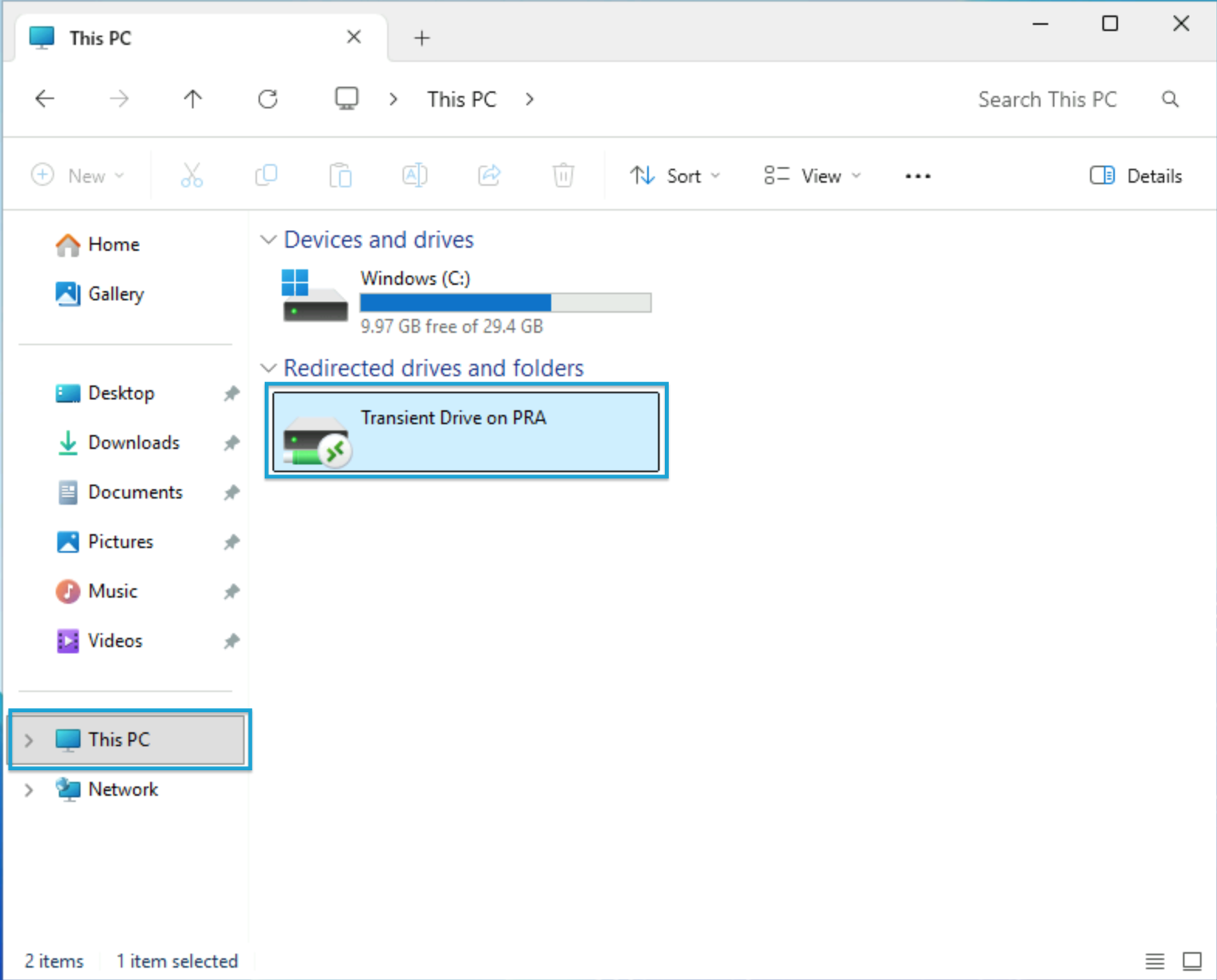
PAB creates a special virtual drive that appears on the remote server for file transfers. This "Transient Drive on PRA" works as a staging area; files you upload appear here, and files you move here get automatically downloaded to your local computer.
It's similar to how RDP redirected drives work, but specifically designed for seamless file transfer through your browser.
Uploading Files to Windows Servers
- Connect to your Windows server through PAB
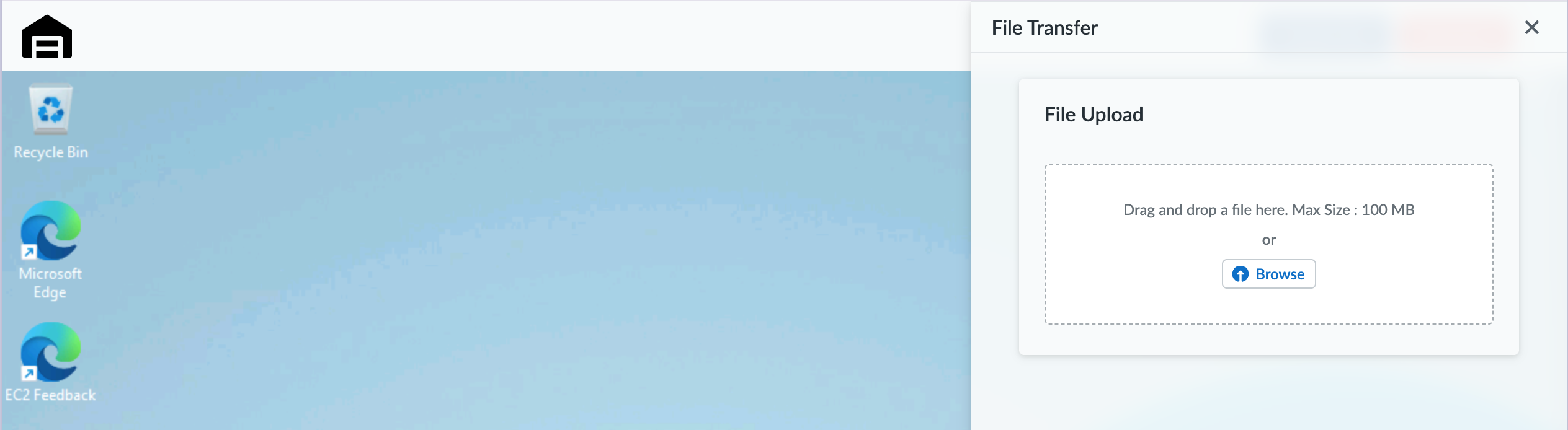
- Open the transfer interface - Click the Transfer Files button in the upper right of the connection window.

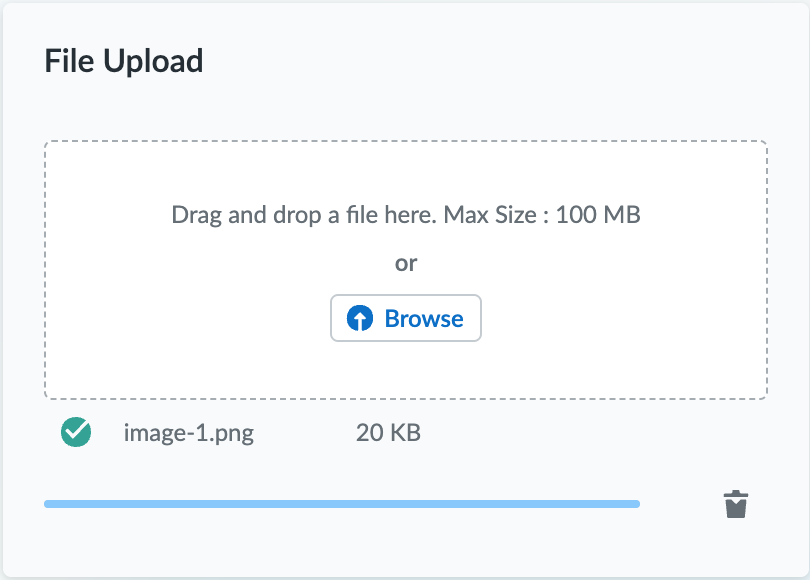
- Select your local file using the Browse button or by dragging the file into the File upload window.
⚠️ Important
- You may upload one file at a time
- The maximum size for a file transfer is 100 MB
💡 Your uploads will appear in the Transient Drive. Once your upload has completed, move on to the next step.
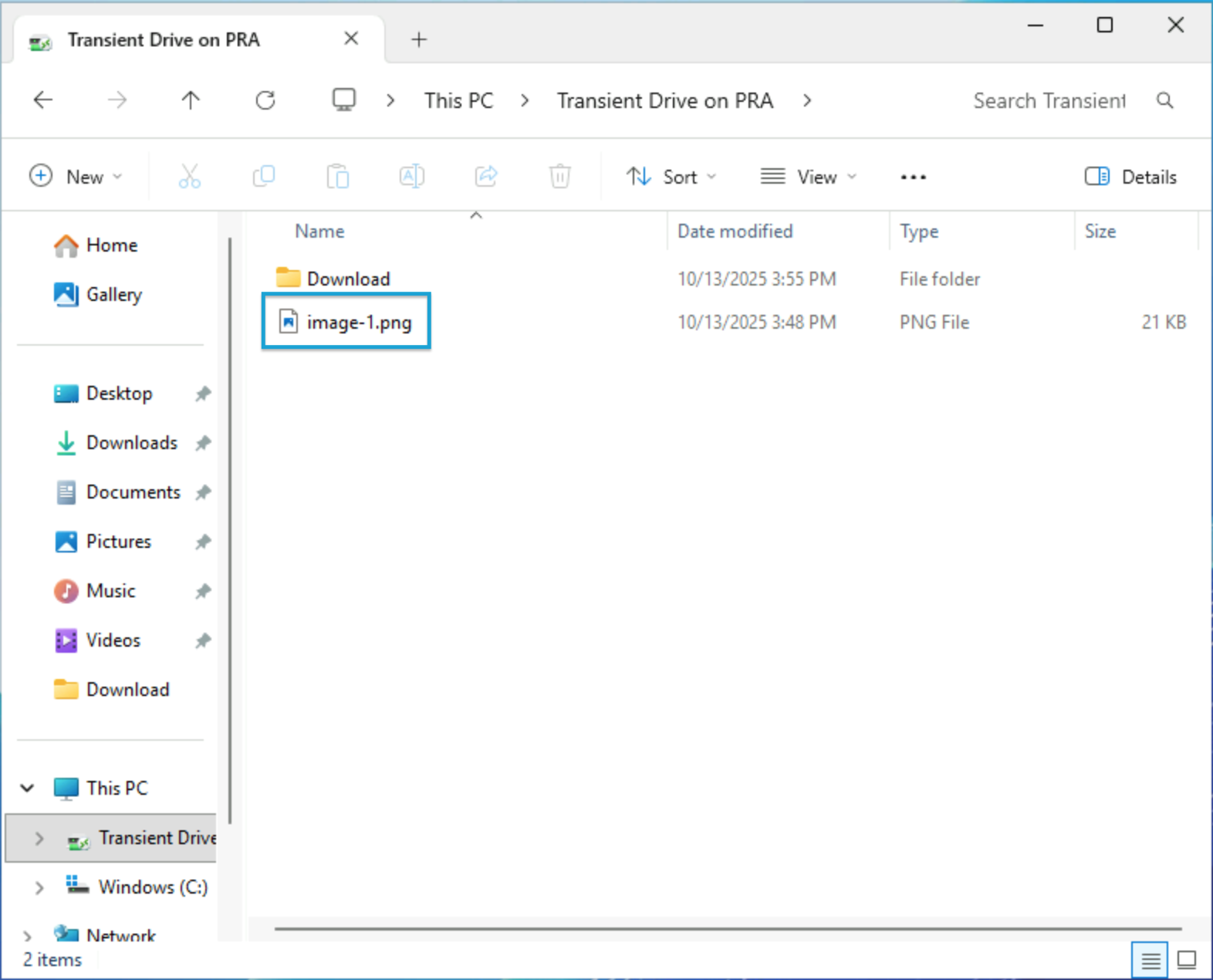
- Open File Explorer on the remote server, locate the This PC section, and click on Transient Drive on PRA (left image). You can now open any files you've uploaded (right image).
Downloading Files from Windows Servers
PAB uses your browser's built-in download functionality. There's a special folder on each remote server; when you copy a file there, your browser automatically downloads it to your local machine.
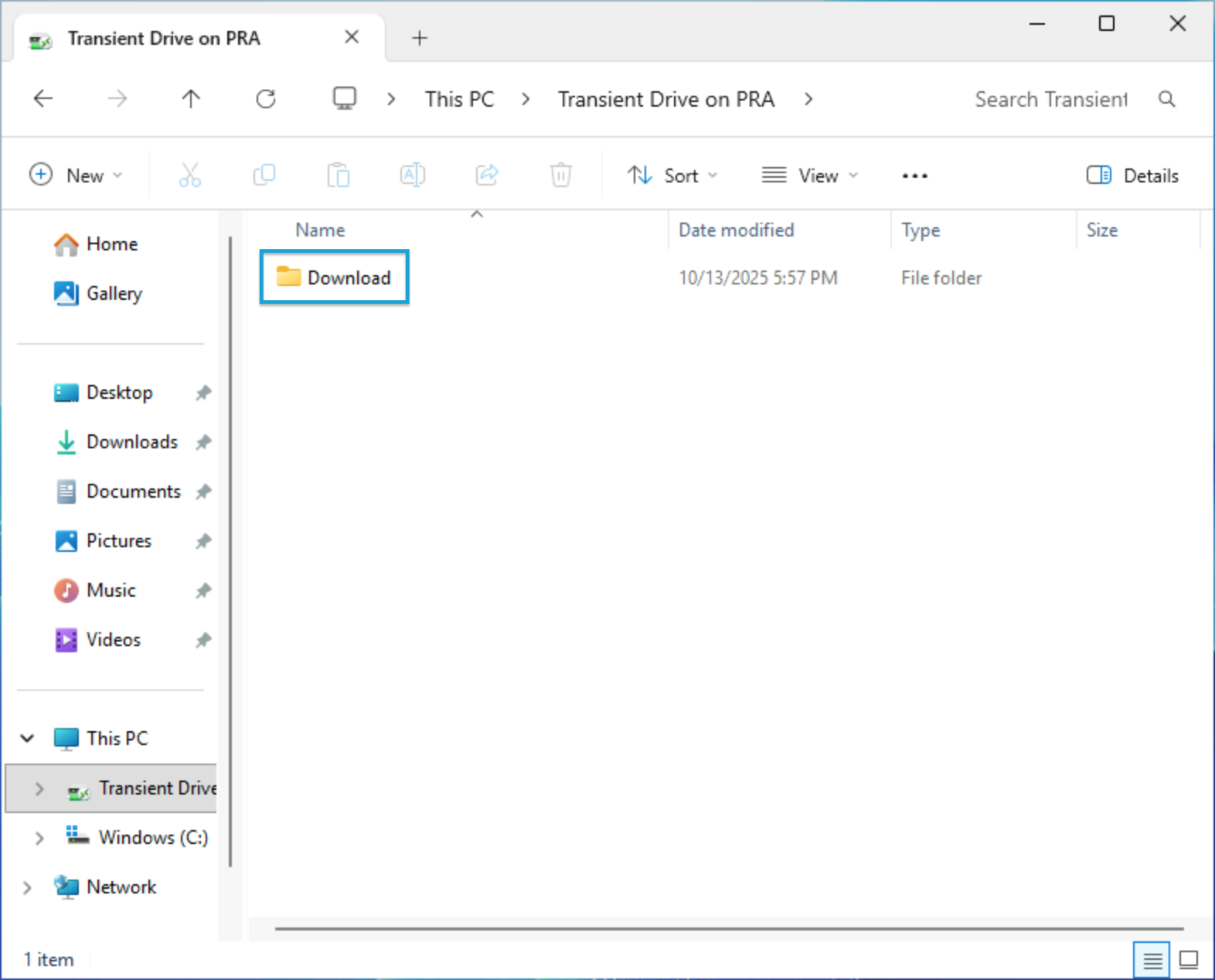
- Open File Explorer on the remote server, locate the This PC section, and click on Transient Drive on PRA (left image). Any file you add to the Download folder will be transferred to your workstation (right image).
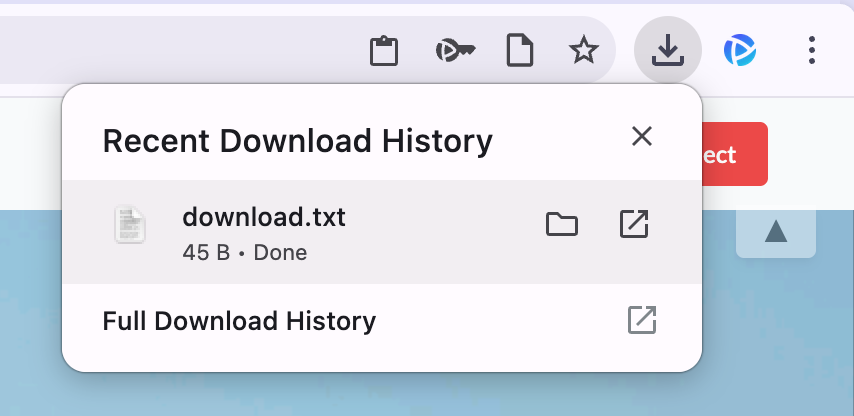
Once the download is complete, it will be visible in your browser's recent download history and available on your filesystem.
Linux Remote Connections
Linux file transfers work directly with the filesystem using absolute paths. Files are uploaded directly to your home directory and downloads require specifying the full path to the file.
Uploading Files to Linux Servers
- Connect to your Linux server through PAB
- Open the transfer interface - Click the Transfer Files button in the upper right of the connection window

- Select your local file using the Browse button or by dragging the file into the File upload window
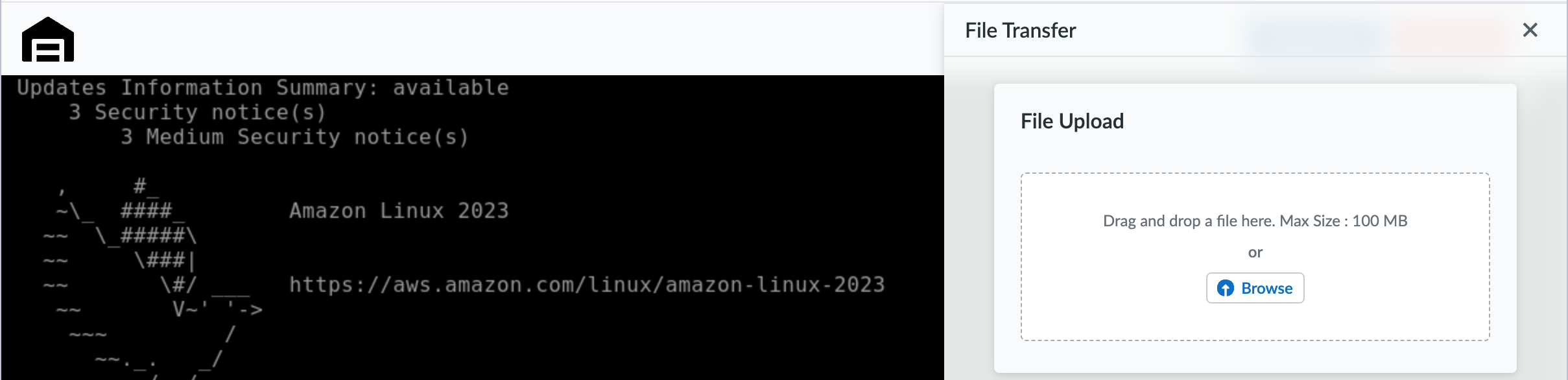
- Files are uploaded directly to the home directory of the authenticated user
⚠️ Important
- You may upload one file at a time
- The maximum size for a file transfer is 100 MB
Downloading Files from Linux Servers
- Locate the file you want to download and get its absolute path
Tip
Use readlink -f filename or realpath filename to quickly get the full path to any file.
- Open the transfer interface - Click the Transfer Files button in the upper right of the connection window
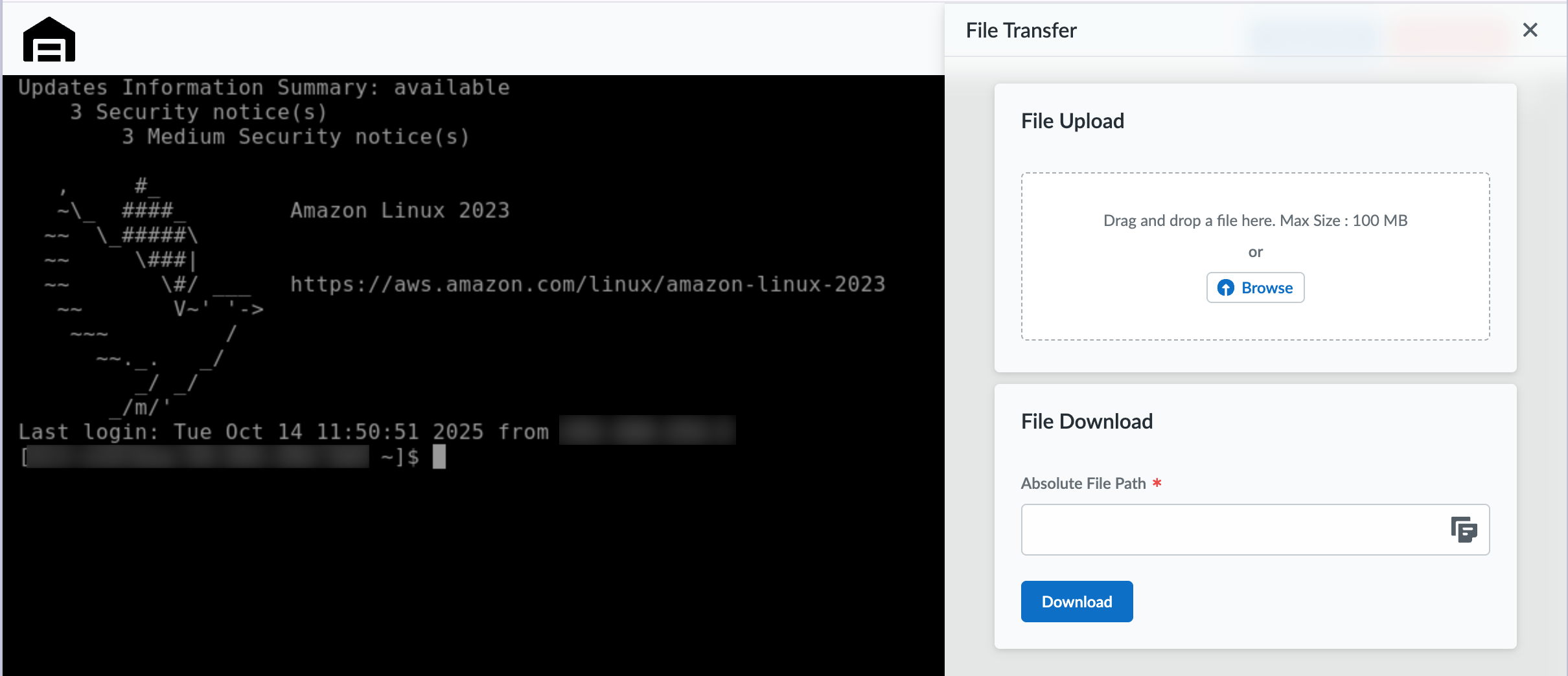
- Specify the absolute file path (e.g.,
/home/[username]/[filename]) and click the Download button
Once the download is complete, it will be visible in your browser's recent download history and available on your filesystem.
Tips & Troubleshooting
General File Transfer Tips
- Check file sizes before transferring large files
- Verify permissions on both local and remote systems
- Use compression for multiple files when possible
Common Issues
- Transfer timeouts: For large files, ensure stable connection
- Permission errors: Verify you have read/write access to target directories
🚨 Need help? Check our known issues page and FAQ, or see our support and troubleshooting section.