Migration Instructions
Follow these steps to migrate from Check Point Harmony Connect (Odo) to Prisma Access Browser. When complete, you'll have access to a modern, secure browser with shortcuts to all the servers you had access to before.
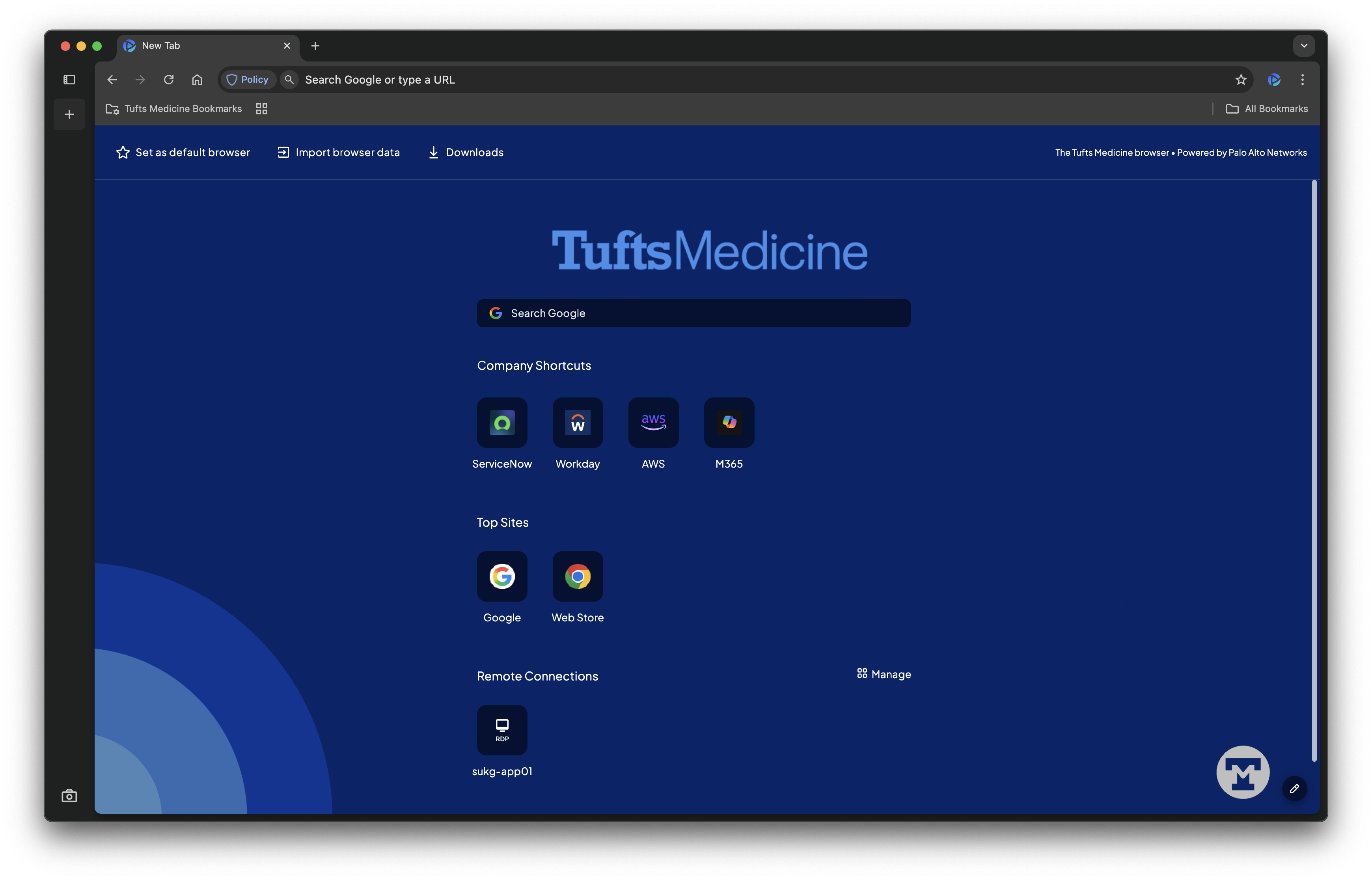
This is what your browser will look like after completing the migration
Step 1: Download and Install Prisma Access Browser
Choose Your Operating System
Select your device type for step-by-step installation instructions:
- Visit the download page: get PAB here.
- Download the installer for your OS.
- Execute the installer run the appropriate installer for your operating system, accepting the default options.
Step 2: Log in with your Tufts Medicine Credentials
Note
If you're a guest, please follow our guest instructions.
Prisma Access Browser requires you to authenticate with your Tufts Medicine credentials before you can start using the browser.
- Launch Prisma Access Browser and log in with your credentials
- Username: Your TM email (
user.name@tuftsmedicine.org) - Password: Your TM password
- Username: Your TM email (
- Complete the multi-factor authentication process
🎉 Congratulations! You've successfully migrated to Prisma Access Browser.
Getting Help
🚨 Need help? Start with our known issues page and FAQ, or see our support and troubleshooting section.