Guest Access to Tufts Medicine Applications
Follow these steps to migrate from Check Point Harmony Connect (Odo) to Prisma Access Browser. When complete, you'll have access to a modern, secure browser with shortcuts to all the servers you had access to before.
Prerequisites
If this is your first time accessing our environment as a guest user, you'll need to complete your guest user account setup, including installing Microsoft Authenticator on your device.
If you're migrating from Harmony Connect (Odo), follow the steps below.
What is Prisma Access Browser?
Prisma Access Browser is a secure gateway that protects Tufts Medicine's systems while giving you seamless access to the resources you need. Think of it as a secure tunnel between your device and Tufts Medicine's resources.
Why use it?
- Enhanced security for healthcare data protection
- Single sign-on - authenticate once, access multiple resource
- Compliance with healthcare industry requirements
- Consistent experience across different resources
What to Expect
The sign-in process is brief and uses the Microsoft Authenticator app you set up during account creation. You'll go through this process each time you need to access Tufts Medicine resources.
Step-by-Step Access Process
Step 1: Download and Install Prisma Access Browser
Choose Your Operating System
Select your device type for step-by-step installation instructions:
- Visit the download page: get PAB here.
- Download the installer for your OS.
- Execute the installer run the appropriate installer for your operating system, accepting the default options.
Step 2: Launch Prisma Access Browser
When you need to access a Tufts Medicine application, launch Prisma Access Browser, there you'll see the Prisma Access Browser login screen:
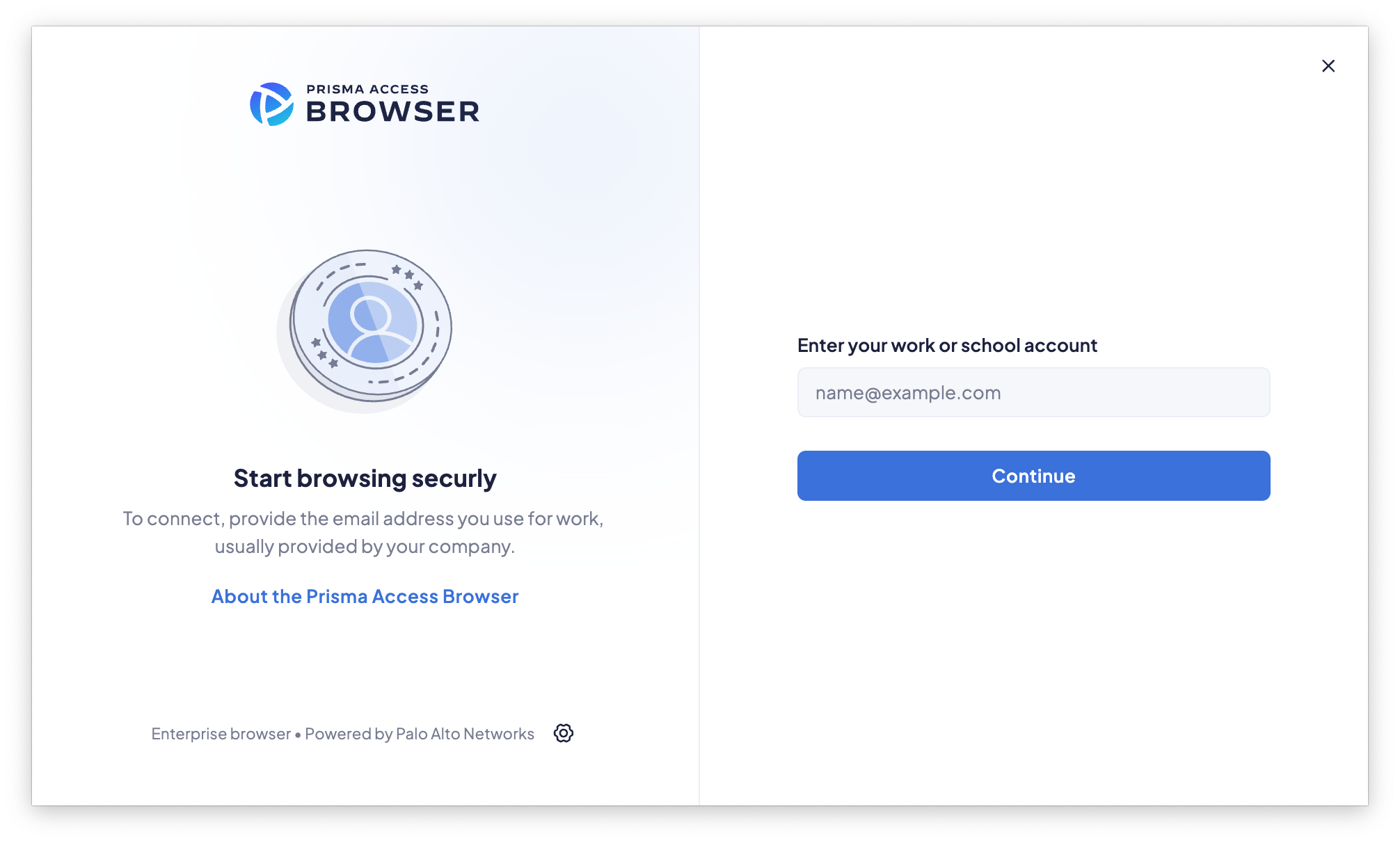
This is your secure entry point to Tufts Medicine systems. You'll need to:
- Enter your email address
- Click "Continue" to proceed with authentication
💡 Use the exact email address you used when setting up your Microsoft account. This is the email address where you received the original invitation.
Step 3: Request Authentication Code
After entering your email, Microsoft will prepare to send you a verification code:
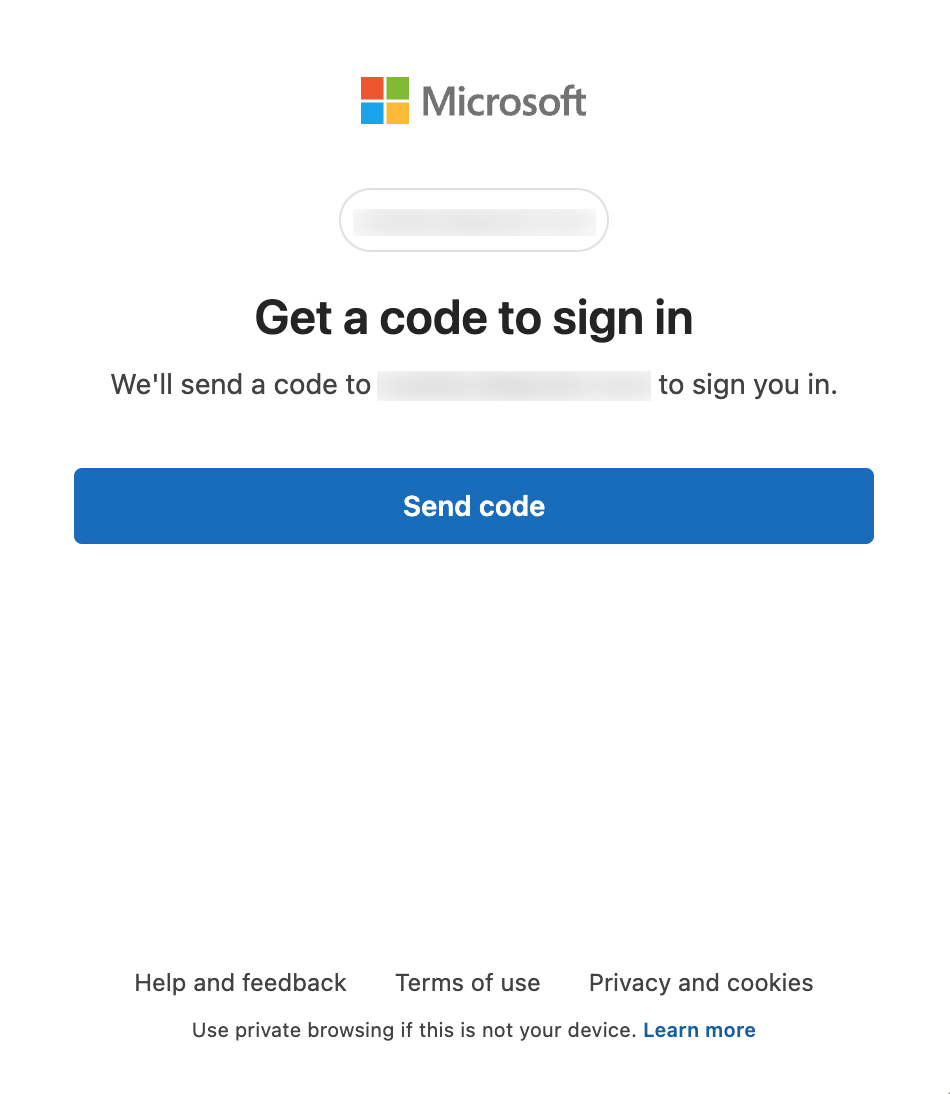
The system shows you which email address will receive the code (with most of it hidden for security).
Click "Send code" to have Microsoft send a verification code to your email.
Step 4: Enter Your Verification Code
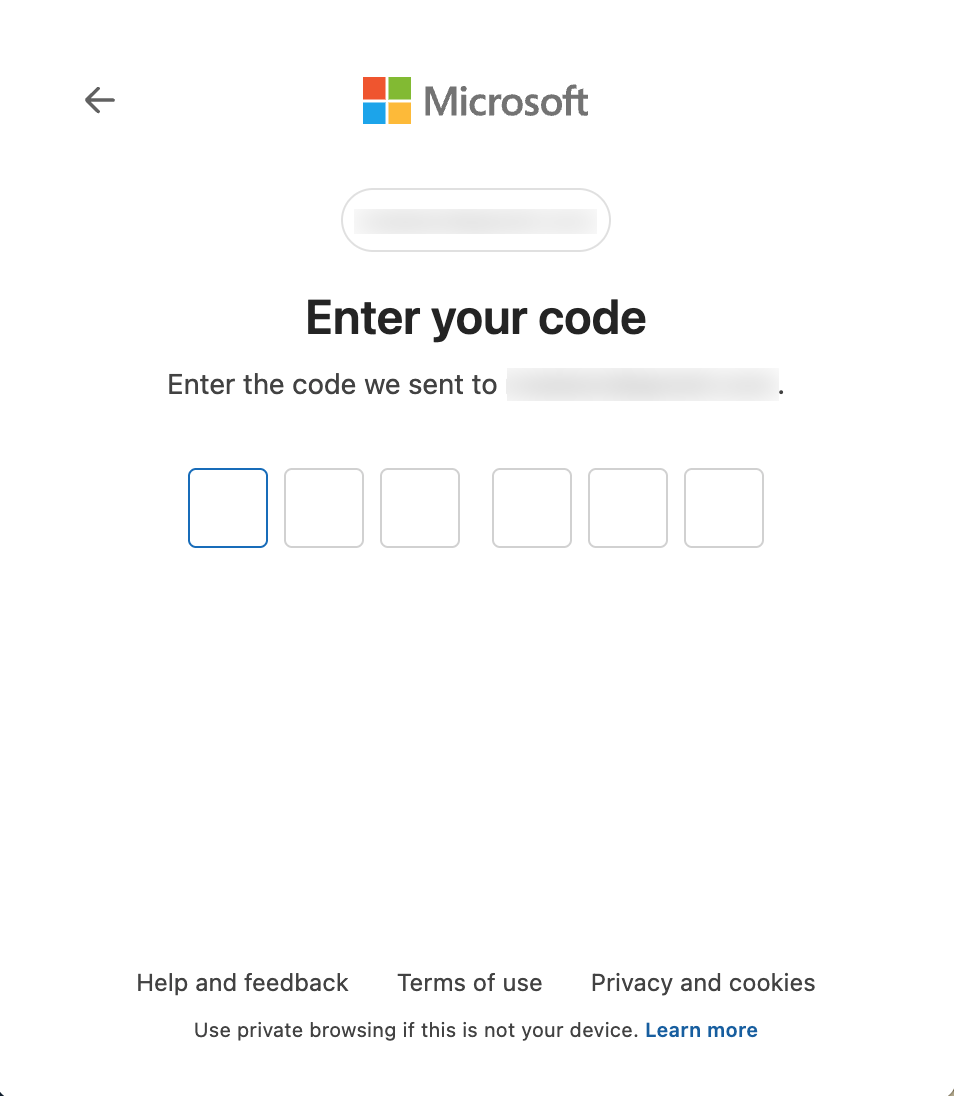
- Check your email for the verification code (it usually arrives within a minute)
- Enter the 6-digit code in the boxes provided
- The system will automatically proceed once you've entered all digits
Code Not Received?
If you don't receive the code within a few minutes, check your spam folder or click the back button to request a new code.
Step 4: Choose Sign-In Preference
Microsoft may ask if you want to stay signed in:
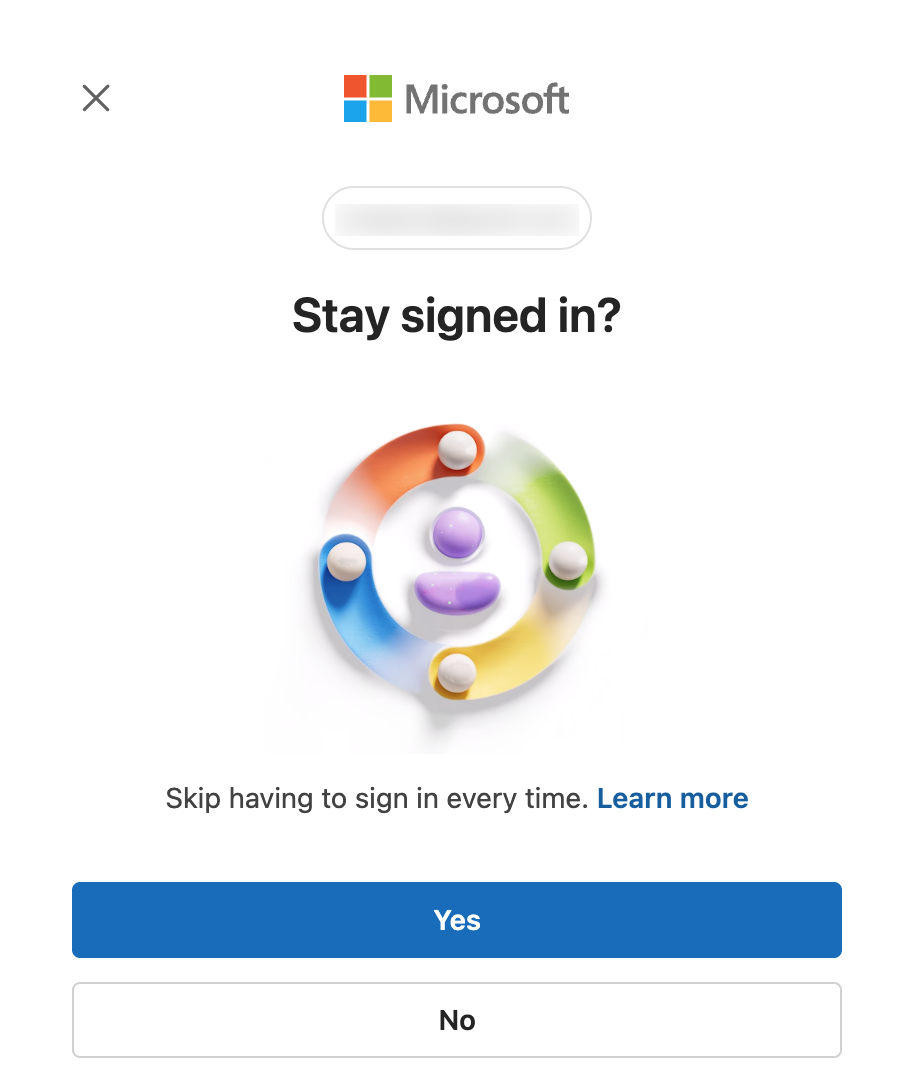
For security, we recommend:
- "Yes" if this is your personal device and you use it regularly
- "No" if this is a shared or public device
This setting helps balance security with convenience for your daily workflow.
Step 5: Complete Multi-Factor Authentication
Finally, you'll use your Microsoft Authenticator app to complete the sign-in:
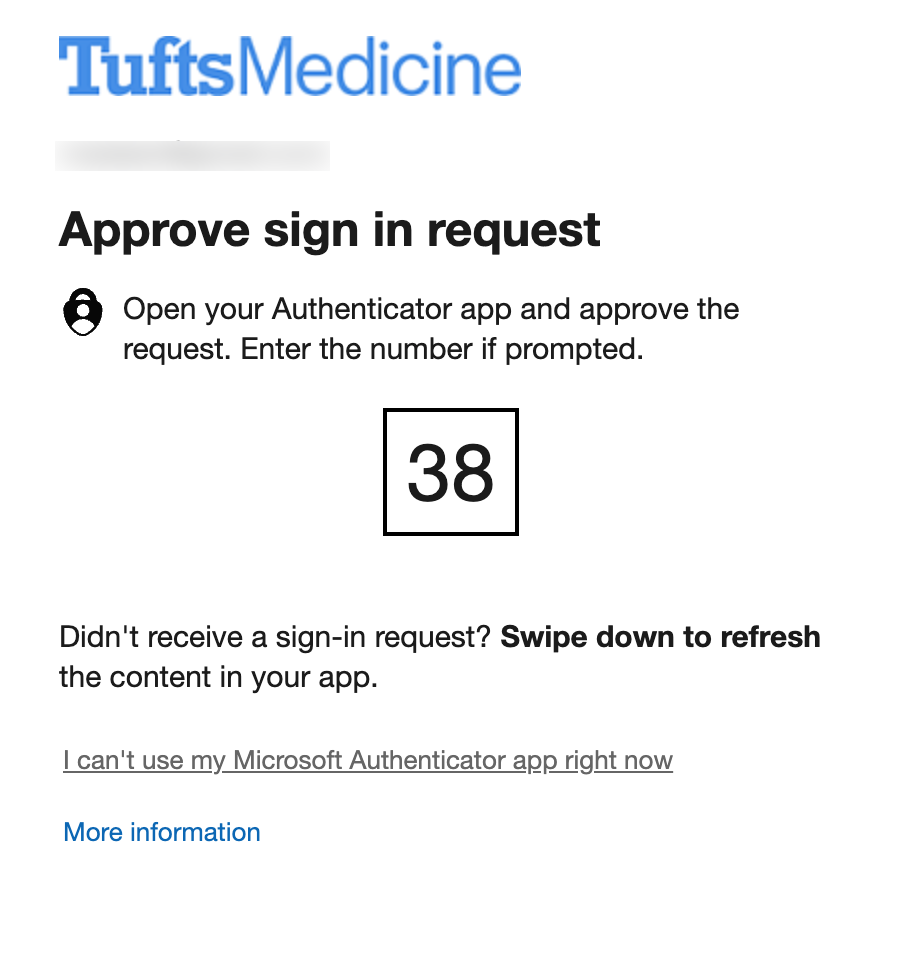
- Open your Microsoft Authenticator app on your mobile device
- Look for the sign-in request - it should appear automatically
- Approve the request by tapping the notification or entering the displayed number (38 in this example)
- Wait for confirmation that the authentication was successful
Authenticator Tips
- Keep your phone nearby when accessing Tufts resources
- If you don't see a notification, try restarting the Authenticator app
- The number shown on screen should match the number in your app
After Successful Authentication
Once you've completed these steps, Prisma Access Browser will connect you securely to Tufts Medicine's environment. You'll then be able to access the specific resources you've been granted permissions for.
The connection process happens automatically in the background - you don't need to do anything else.
Troubleshooting Common Issues
"I can't receive the verification code"
- Check your spam/junk email folder
- Ensure you're using the correct email address
- Wait a few minutes - codes sometimes take time to arrive
- Try requesting a new code if the first one doesn't arrive
"My Authenticator app isn't showing a request"
- Make sure your phone has internet connectivity
- Try refreshing the Authenticator app
- Swipe down in the app to refresh notifications
- Check if you have multiple Microsoft accounts in the app
"I'm signed in but can't access a specific application"
- Contact the Tufts Medicine team member who invited you
- They may need to grant additional permissions for specific applications
- Some applications may require separate setup steps beyond this login process
Getting Help
🚨 Need help? Start with our known issues page and FAQ, or see our support and troubleshooting section.