Guest User Setup Guide
This guide is for guest users (non-Tufts Medicine employees) who need to access Tufts Medicine resources. In this process, you'll be creating a Microsoft account that will be linked to Tufts Medicine's system.
This guide assumes your email address isn't already associated with a Microsoft Account, if your address is, the process will be slightly different and have fewer steps.
Who is this for?
This process is for vendors, contractors, partners, and other guest collaborators who have been invited to access Tufts Medicine applications.
Overview
As a guest user, you'll need to:
- Receive an invitation from Tufts Medicine via email
- Create a Microsoft account using your email address
- Set up multi-factor authentication for security
- Access Tufts Medicine resources through Prisma Access Browser
Step-by-Step Instructions
Step 1: Accept Your Invitation
You'll receive an invitation email from "Microsoft Invitations on behalf of Tufts Medicine":
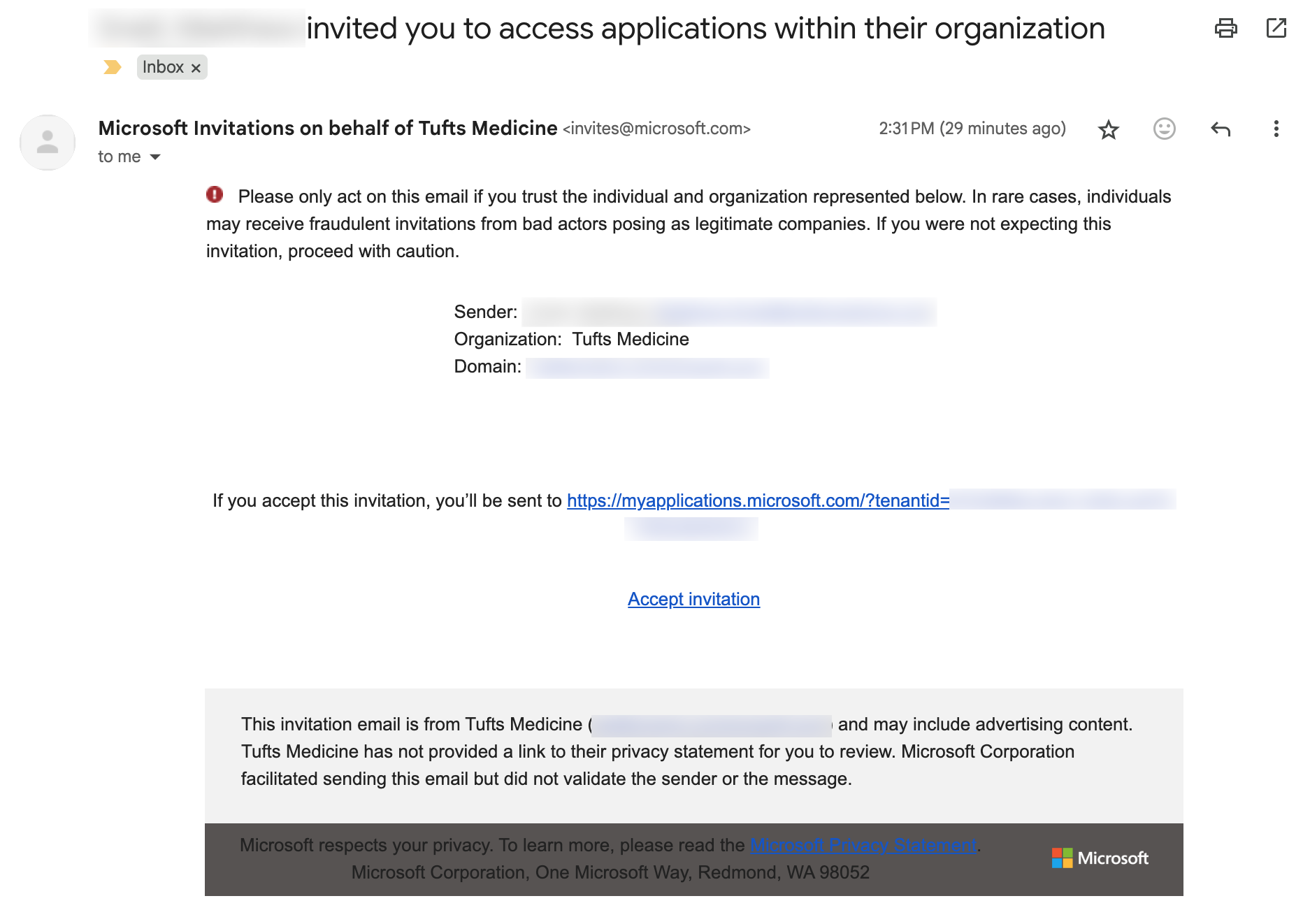
Important Security Note
Only accept this invitation if you were expecting it from Tufts Medicine. The email will show:
- Organization: Tufts Medicine
- Sender: Microsoft Invitations
Click "Accept invitation" to begin the setup process.
TIP
If your email is not part of an existing Organization or Microsoft account, you will be prompted to create a new Microsoft account
Step 2: Create Your Microsoft Account
When you click the invitation link, you'll be taken to a Microsoft sign-in page. If you don't have a Microsoft account yet, you'll see an error message:
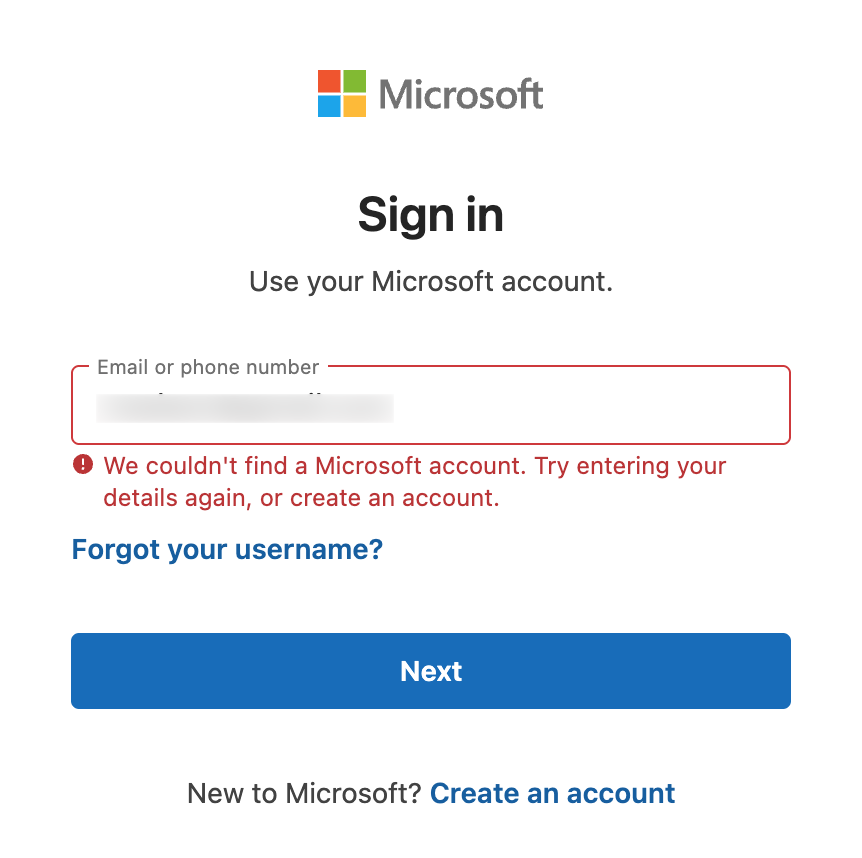
Click "Create an account" to proceed.
Step 3: Account Creation Process
Microsoft will create an account using your email address:
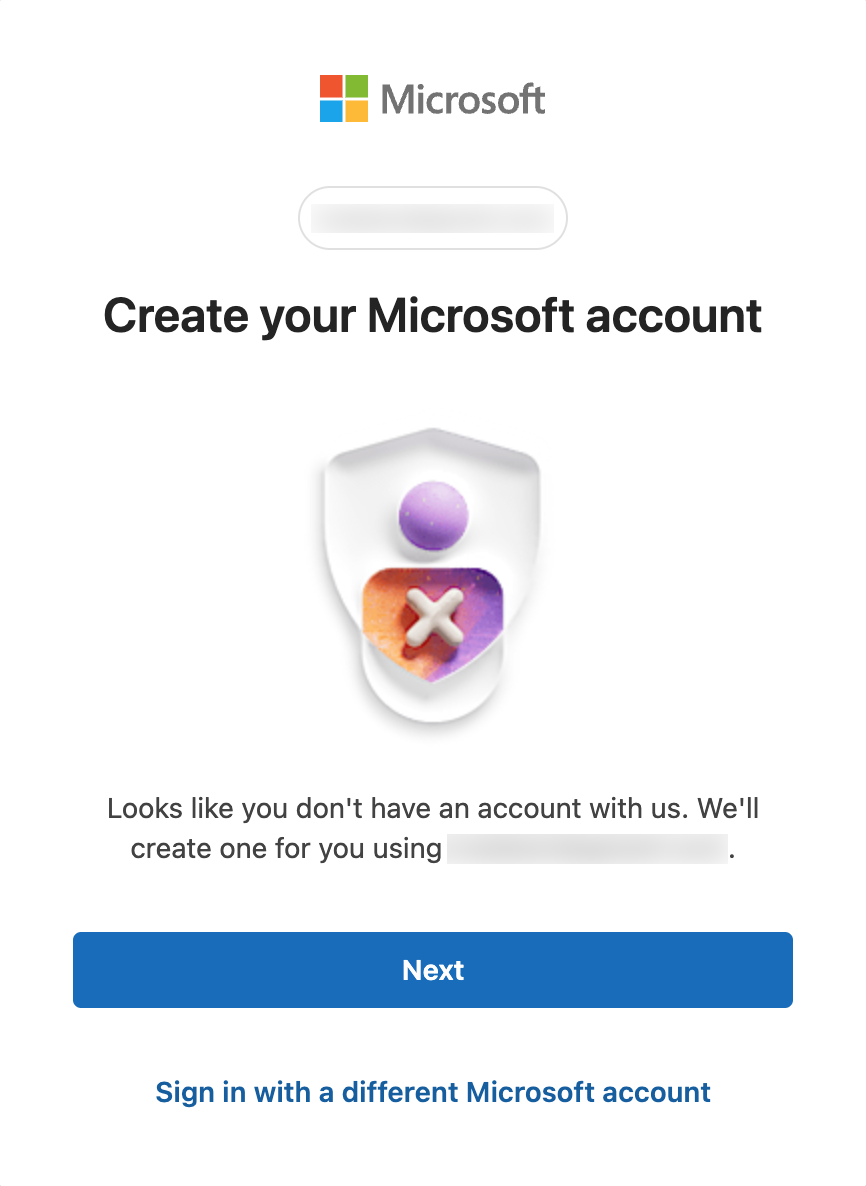
Click "Next" to continue with account creation using your email address.
Step 4: Verify Your Email Address
You'll need to verify your email address by entering a verification code:
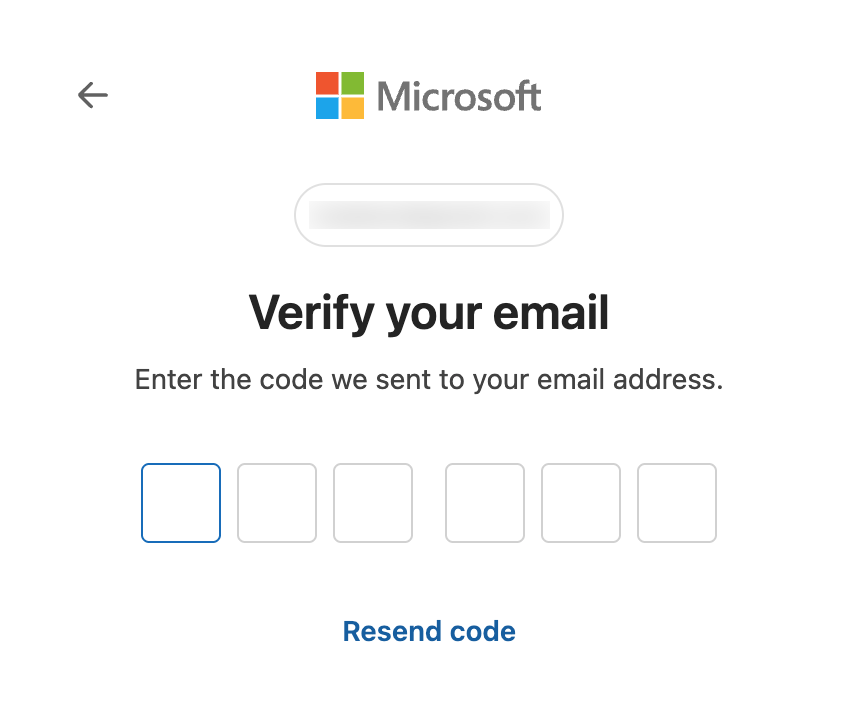
- Check your email for a verification code from Microsoft
- Enter the 6-digit code in the boxes provided
No code?
If you don't receive the code, click "Resend code"
Step 5: Complete Your Account Details
After email verification, you'll be prompted to set up account details including your name, display information, and more:
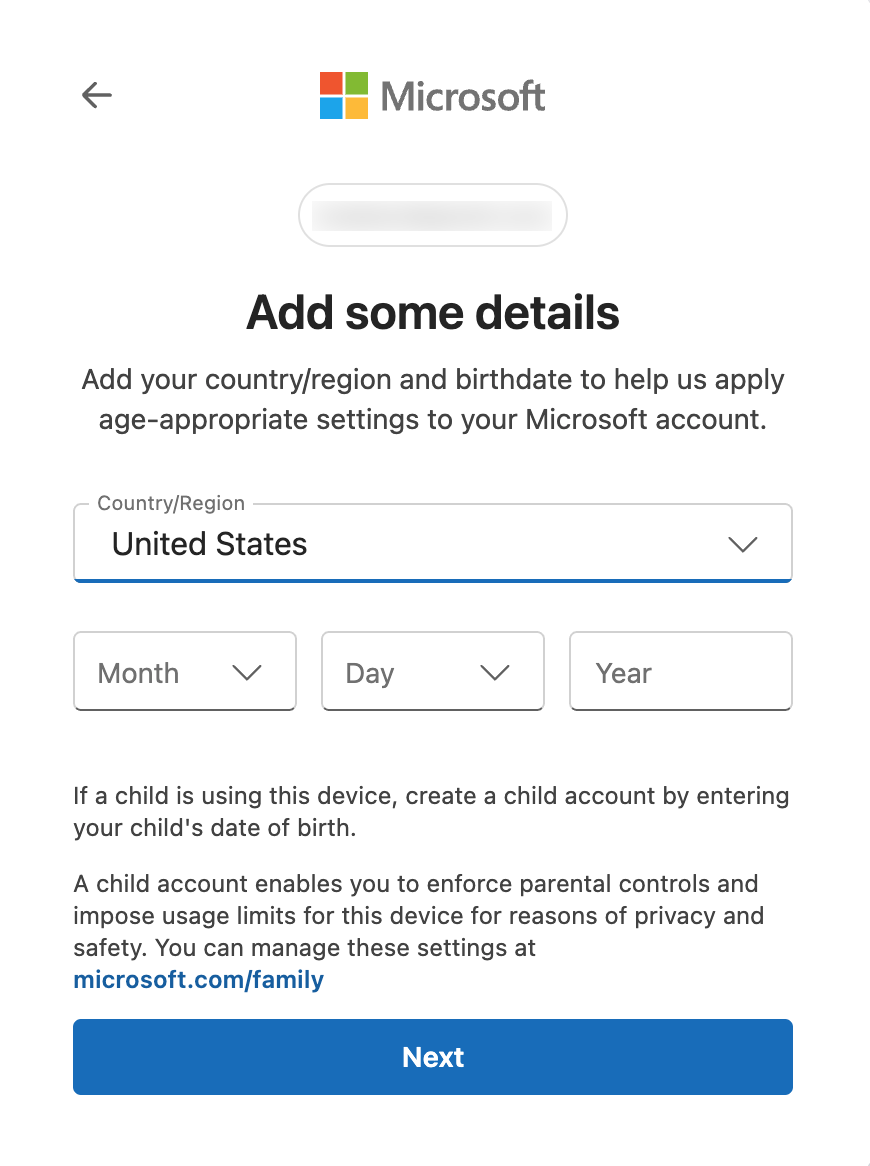
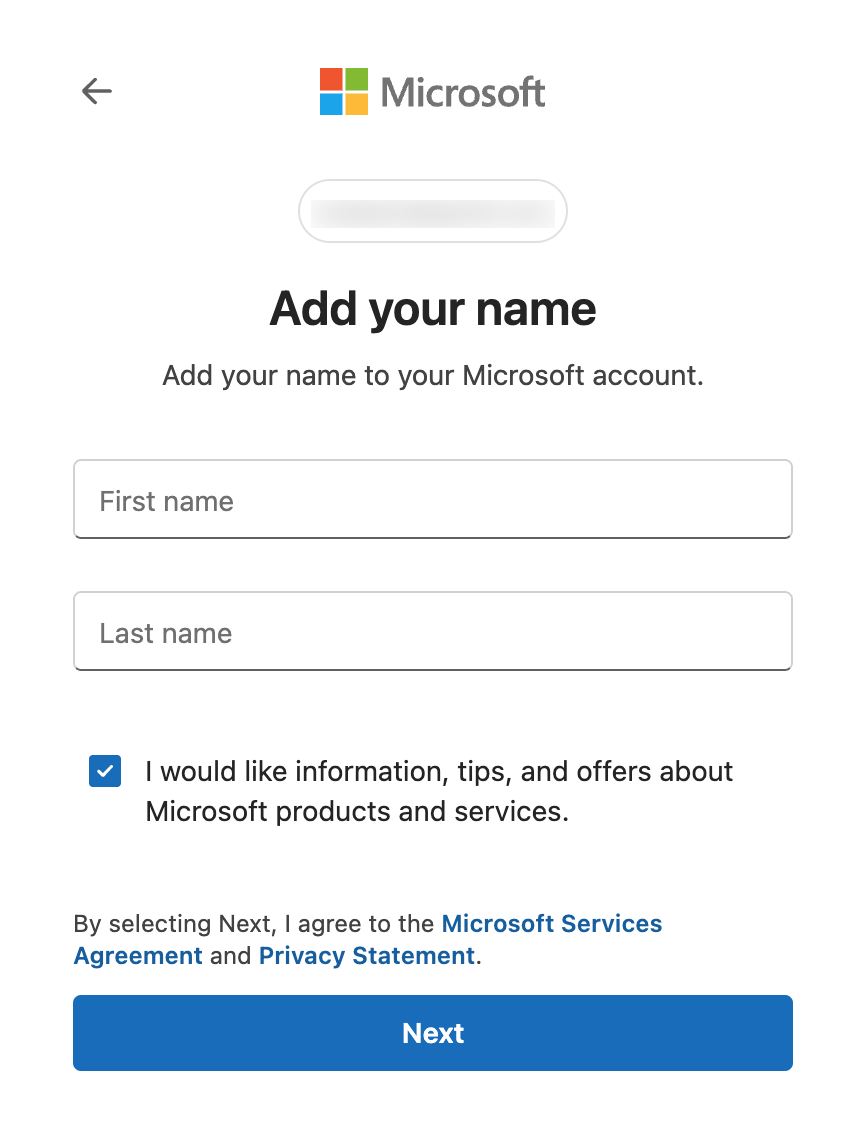
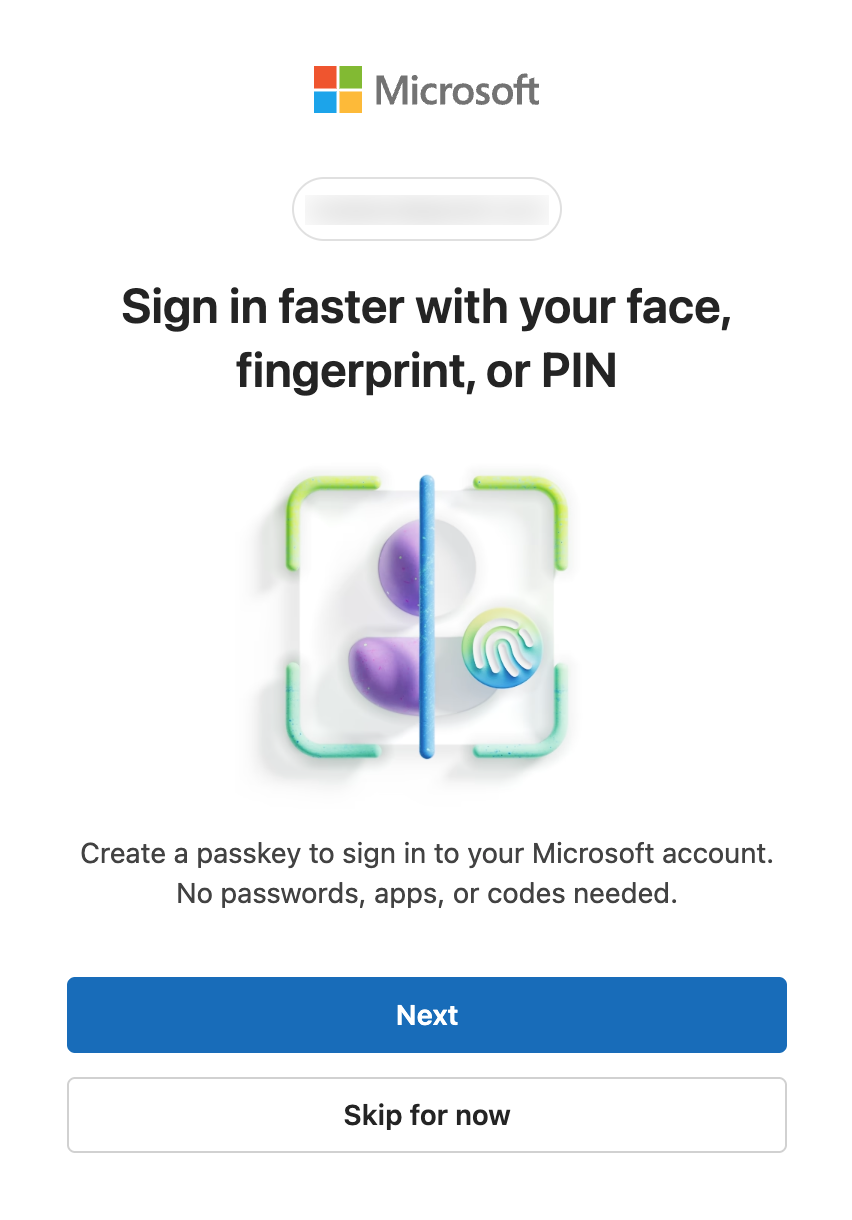
Complete all required fields and configure your sign-in preferences, clicking "Next" to continue.
Step 6: Accept Permission Request
You will be asked to accept requested permissions:
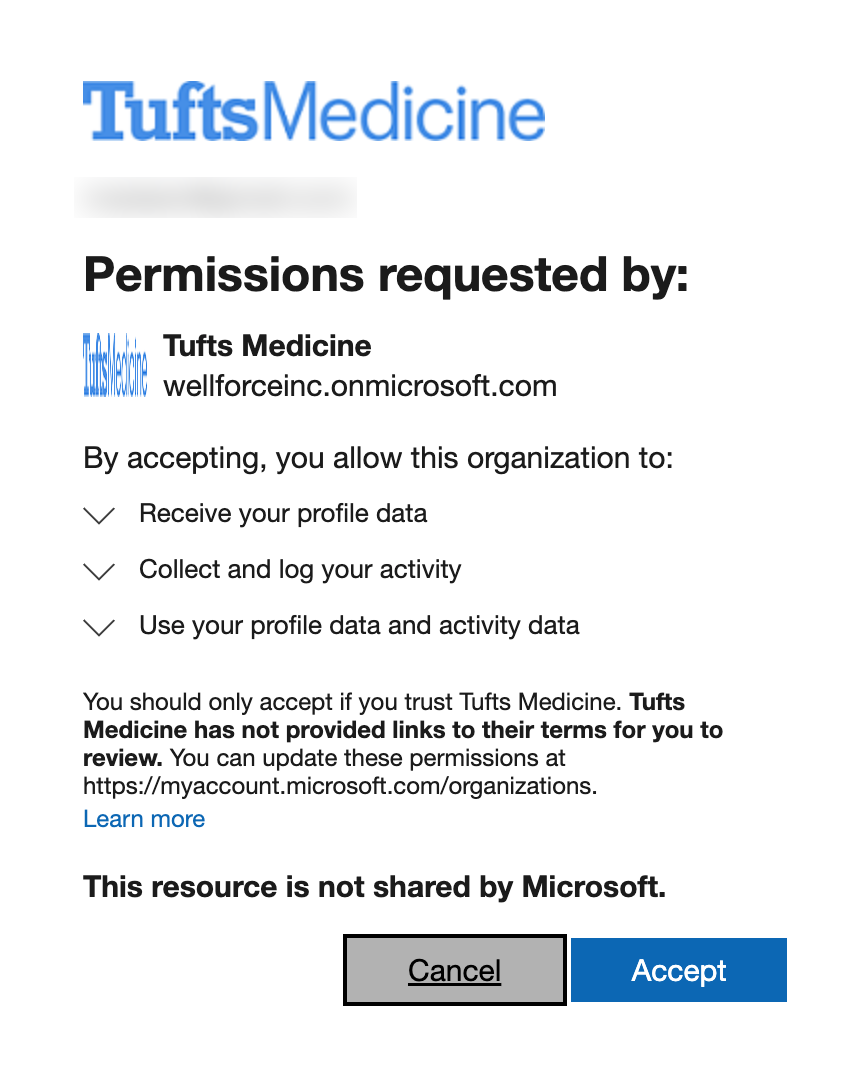
You will need to accept these permissions to proceed.
Step 7: Set Up Multi-Factor Authentication (MFA)
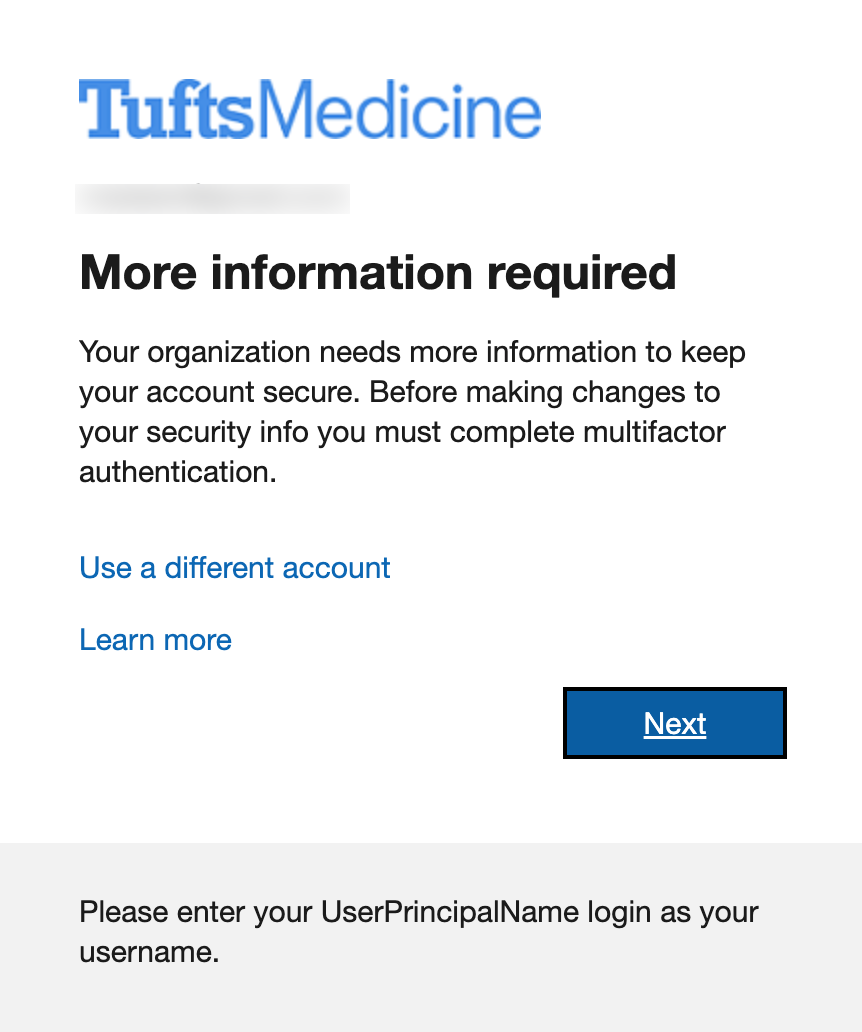
For security, Tufts Medicine requires multi-factor authentication:
Why MFA?
Multi-factor authentication adds an extra layer of security to protect both your account and Tufts Medicine's systems. This is required for all guest users.
Click "Next" to set up MFA.
Step 8: Install Microsoft Authenticator
You'll need to install the Microsoft Authenticator app on your mobile device:
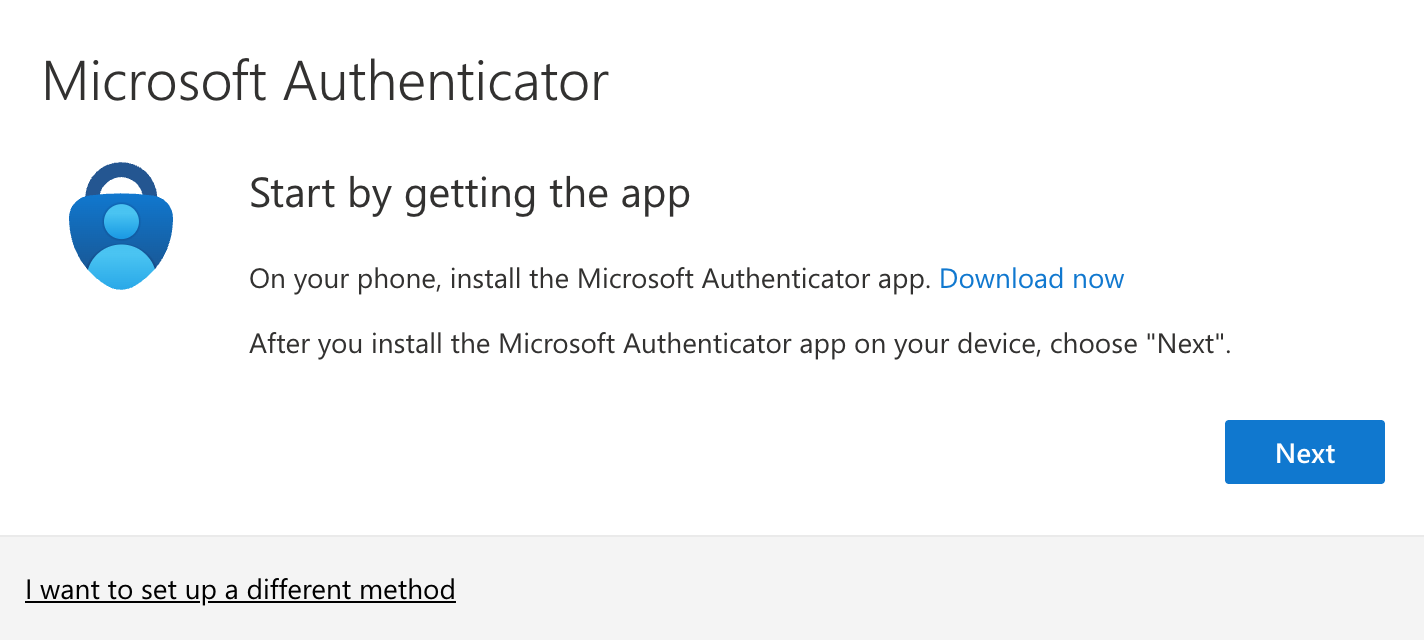
Download the app from your device's app store:
Install the app on your phone or tablet
Click "Next" after installation
Step 9: Configure the Authenticator App
Follow the on-screen instructions to set up the app:
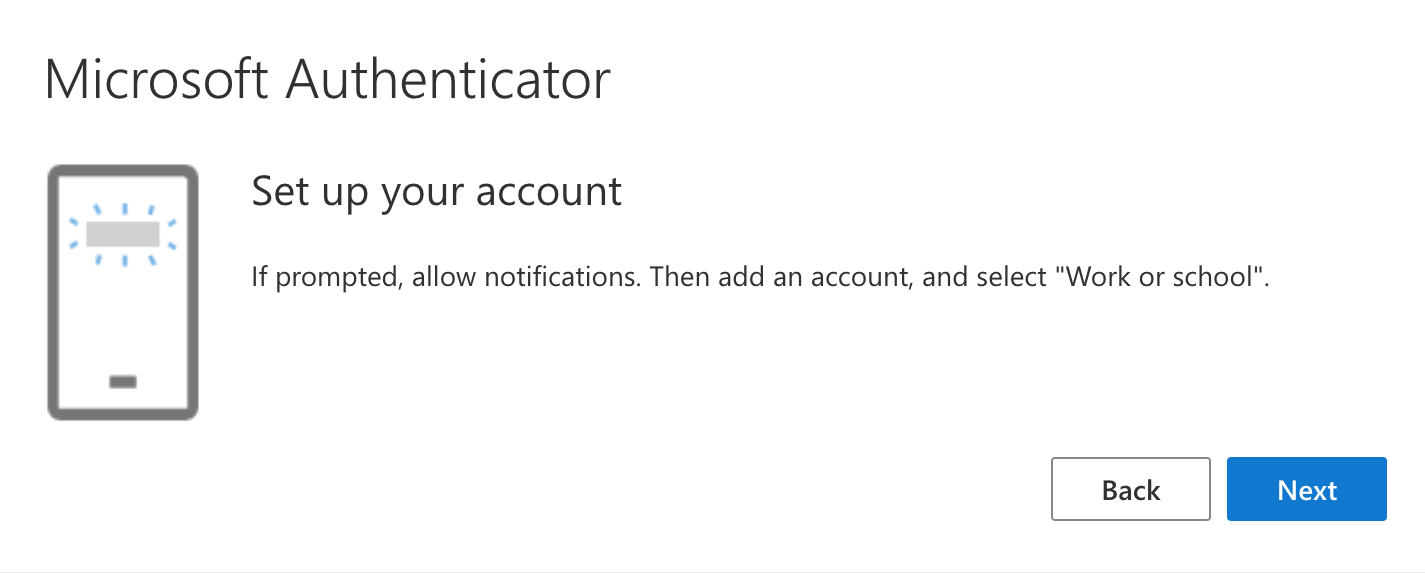
- Open the Microsoft Authenticator app on your device
- Follow the setup wizard in the app
- Return to your browser and click "Next"
Step 10: Scan the QR Code
You'll be shown a QR code to link your device:
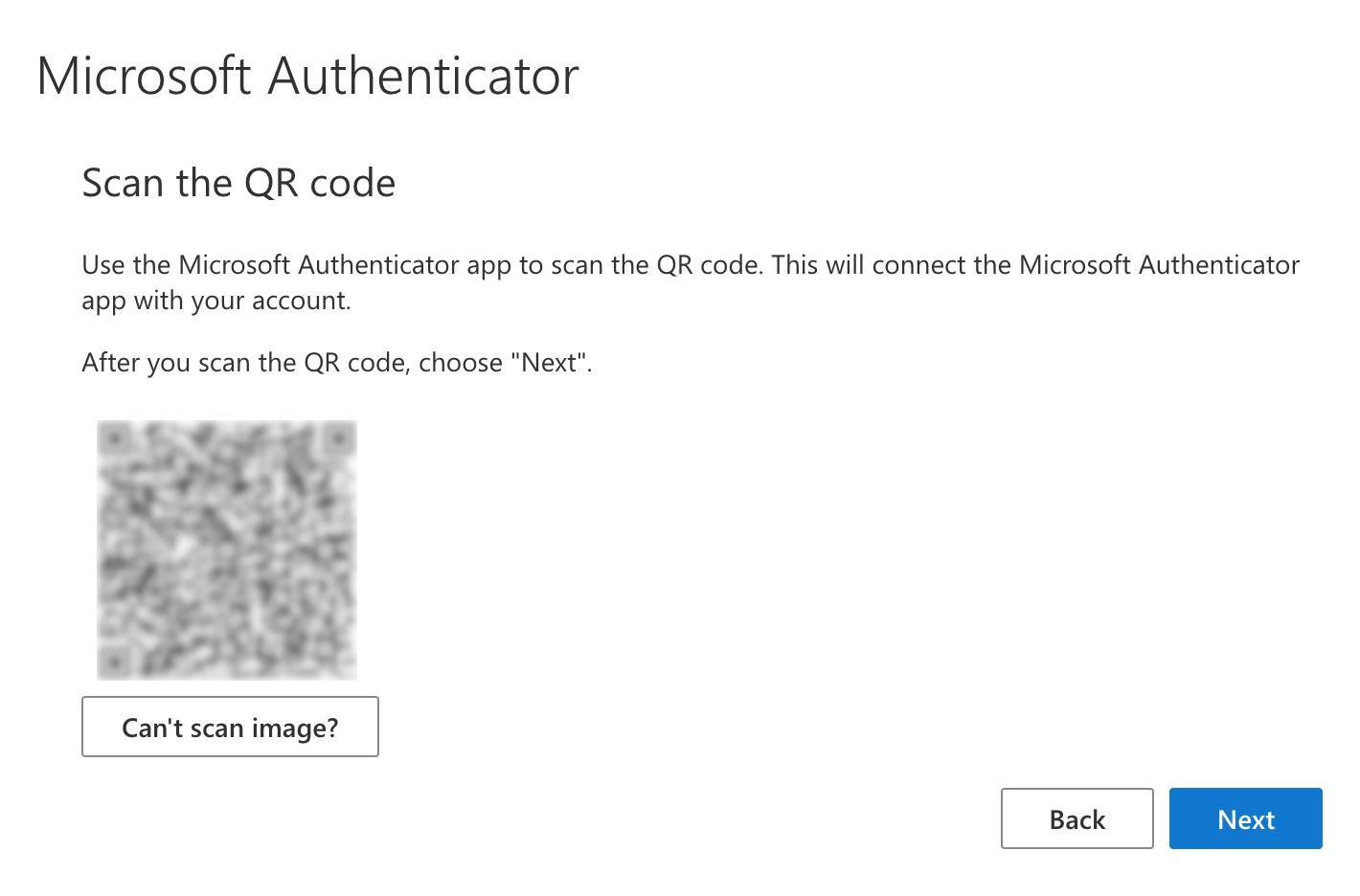
- In the Microsoft Authenticator app, add a new account
- Select "Work or school account"
- Use your camera to scan the QR code displayed
- The app will automatically configure your account
Step 11: Confirm Setup
Test your authenticator setup:
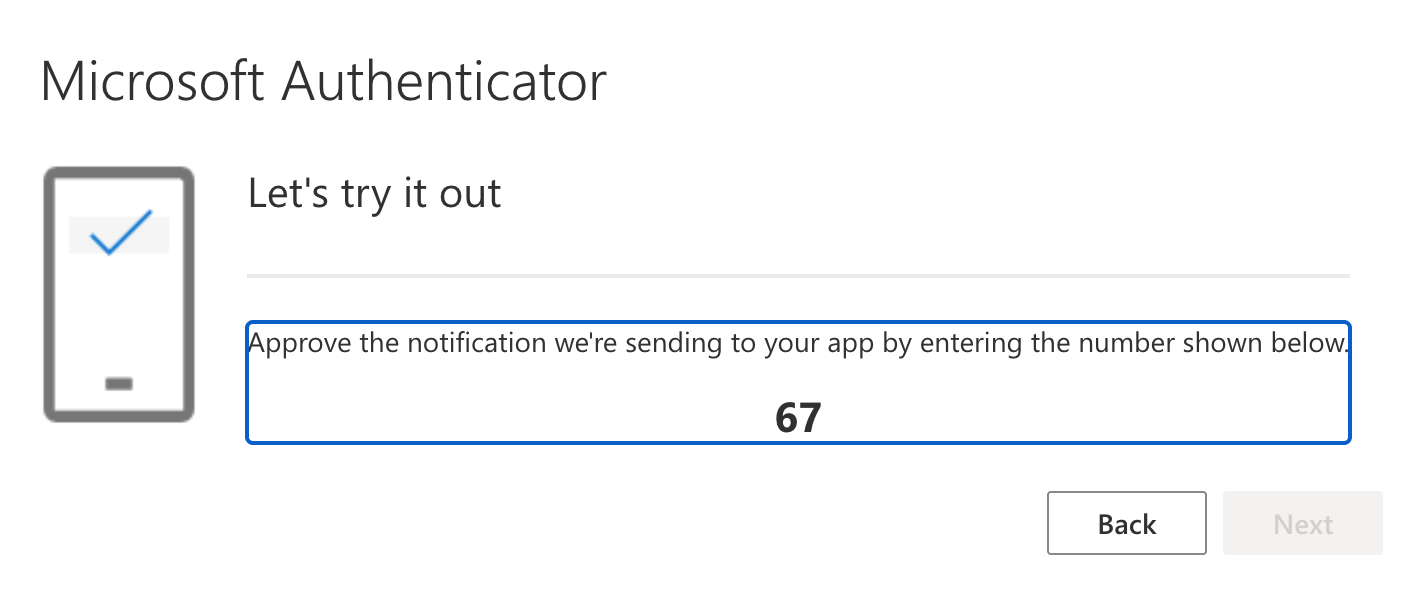
- The app will show you a notification or code
- Approve the sign-in request in your authenticator app
- Confirm that the test was successful
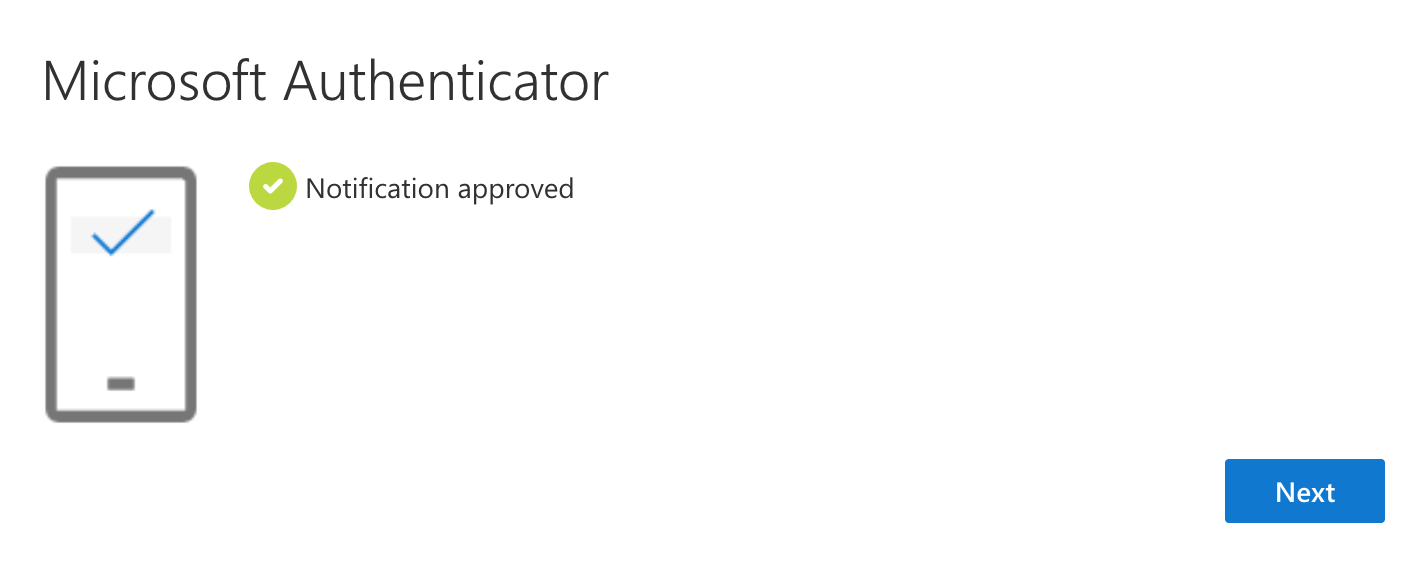
Step 12: Setup Complete
Once everything is configured, you'll see a success message:
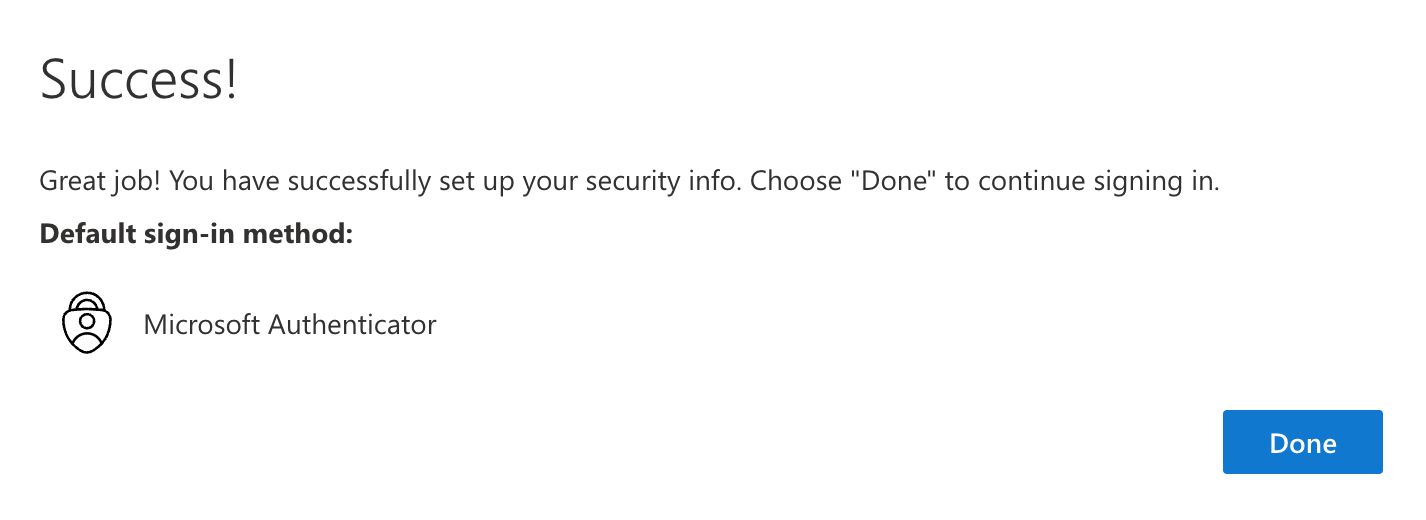
Congratulations! Your guest user account is now set up and secure.
Account Setup Complete
You'll be directed to the Tufts Medicine application portal:
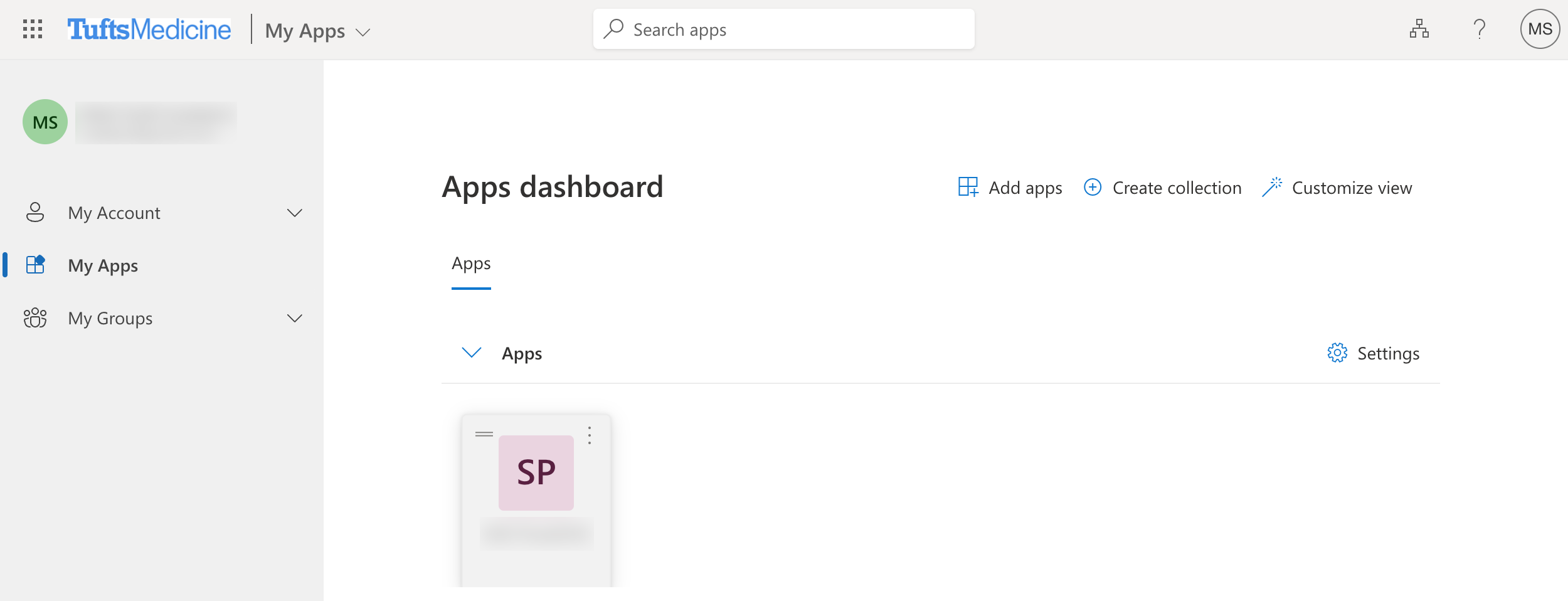
You can close this portal and then move on to installing Prisma Access Browser and Logging in:
Install Prisma Access Browser
You're almost there, just a few more pieces to put into place:
→ Follow our guide for installing Prisma Access Browser on Windows or Mac
Access Tufts Medicine Resources
→ See our guide for Accessing Tufts Medicine Applications
You'll use your email address and Microsoft Authenticator app each time you sign in. Keep your authenticator app handy for daily access!
Troubleshooting
Common Issues
Q: I didn't receive the invitation email
- Check your spam/junk folder
- Contact the Tufts Medicine person who invited you
- Ensure they have your correct email address
Q: I didn't receive the verification code
- Check your spam/junk folder
- Wait a few minutes and try again
- Click "Resend code" on the verification page
Q: The Microsoft Authenticator app won't scan the QR code
- Ensure your camera permissions are enabled
- Try entering the code manually (there's usually a "Can't scan?" or "Enter code manually" option)
- Make sure you have good lighting and hold your phone steady
Getting Help
🚨 Need help? Start with our known issues page and FAQ, or see our support and troubleshooting section.